
Manuale utente PhotoRobot per richieste di funzionalità dei controlli
Questo manuale utente serve come guida all'utilizzo della bacheca delle richieste di funzionalità di PhotoRobot Controls. Il manuale descrive come accedere e leggere la bacheca, votare le richieste esistenti, inviare nuove richieste e seguire i ticket delle richieste. Scopri come funziona tutto e come puoi iniziare a partecipare immediatamente per contribuire a plasmare lo sviluppo di PhotoRobot Controls.
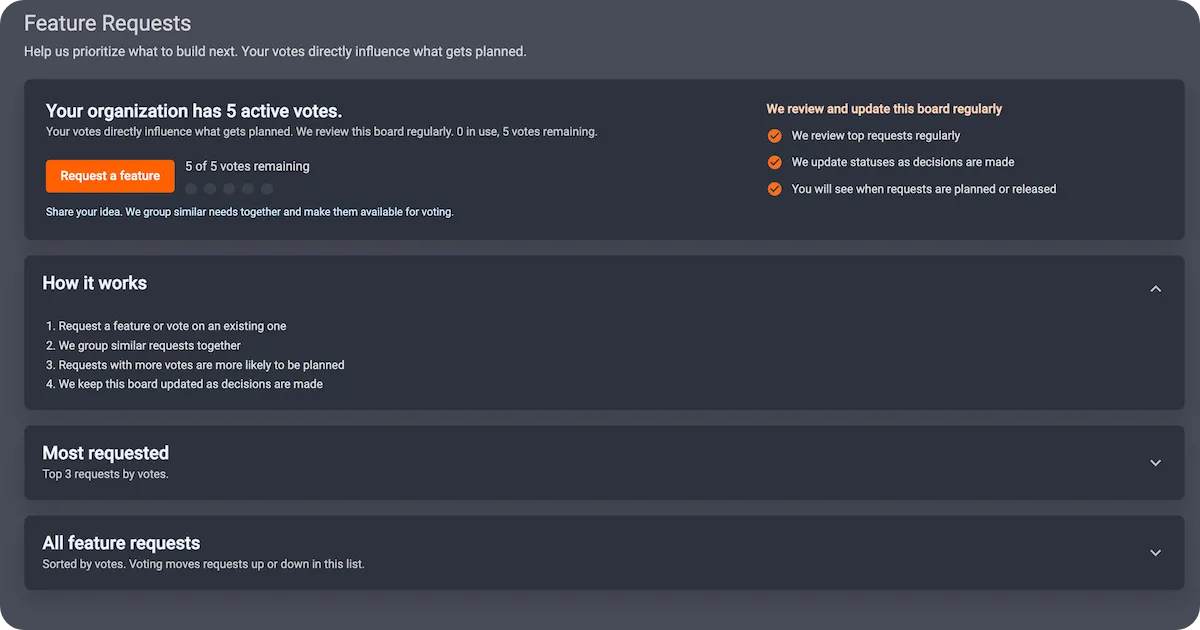
1 - Come aprire la bacheca delle richieste di funzionalità
Per accedere alla bacheca delle richieste di funzionalità di PhotoRobot Controls, accedi a un account PhotoRobot e naviga all'interfaccia di supporto.
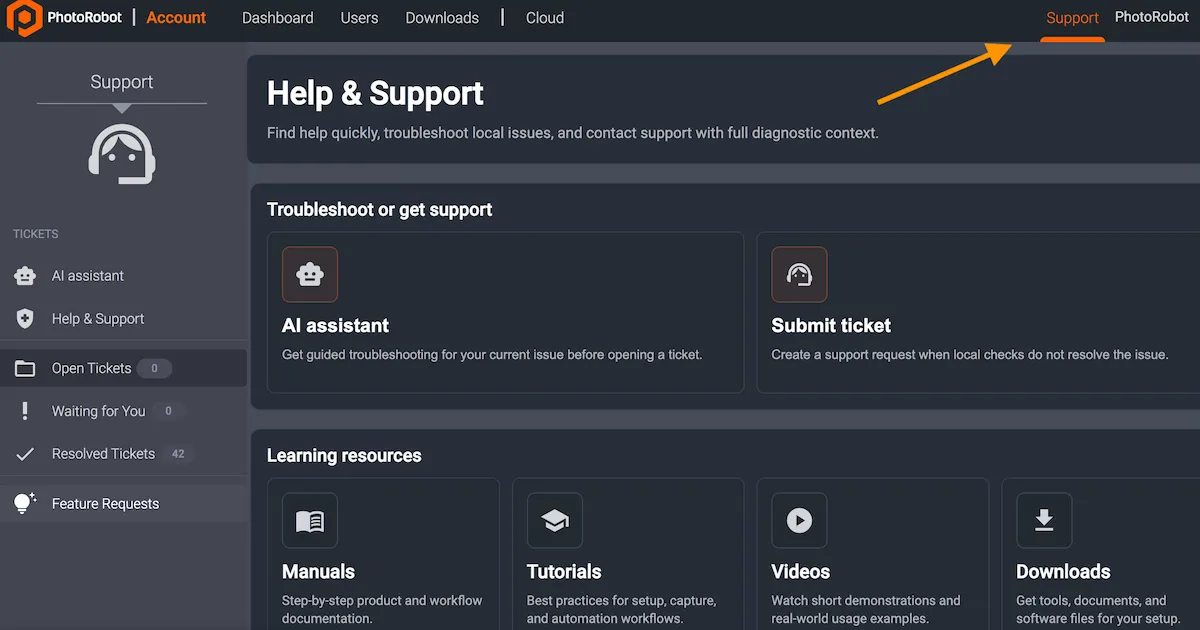
- Nota: Se si utilizza la versione locale di CAPP, cliccare prima su Supporto, e poi su Invia un ticket. L'interfaccia di supporto si aprirà nella versione web dell'applicazione.
Successivamente, nell'interfaccia di supporto dell'applicazione web, tocca Richieste di funzionalità nella barra laterale sinistra. Questo apre l'interfaccia per la bacheca delle richieste di funzionalità.
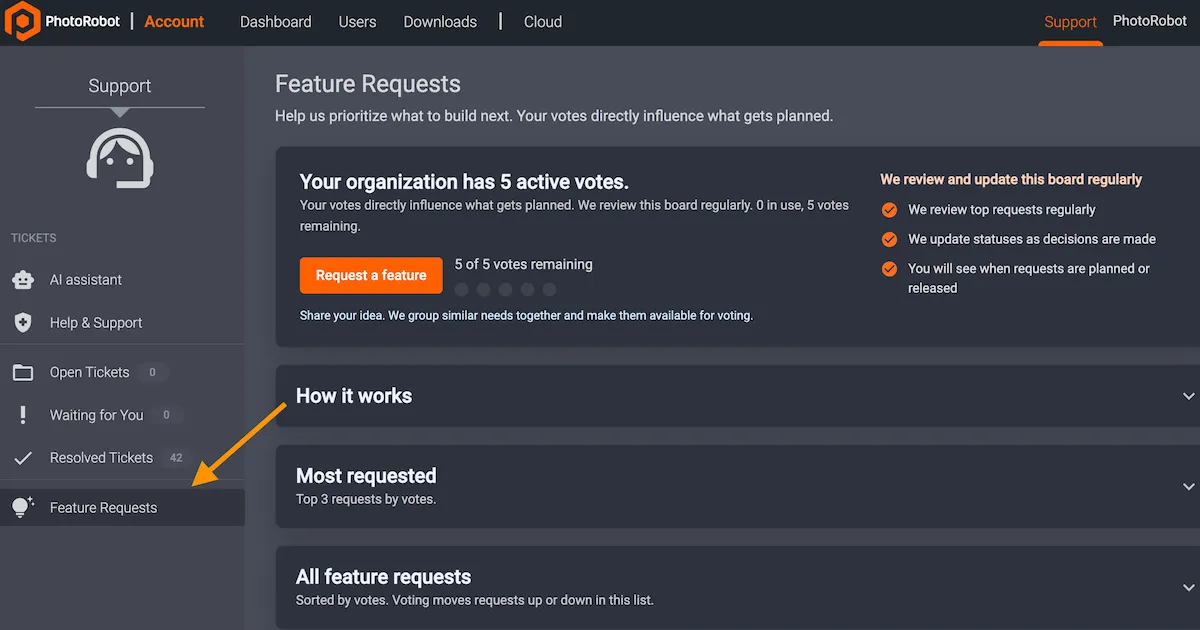
2 - Come leggere la bacheca delle richieste di funzionalità
La bacheca delle richieste di funzionalità di PhotoRobot Controls in CAPP ha un'interfaccia che contiene quattro pannelli. Dall'alto verso il basso, i pannelli mostrano i tuoi voti attivi, come funziona, i più richiesti e tutte le richieste di funzionalità.
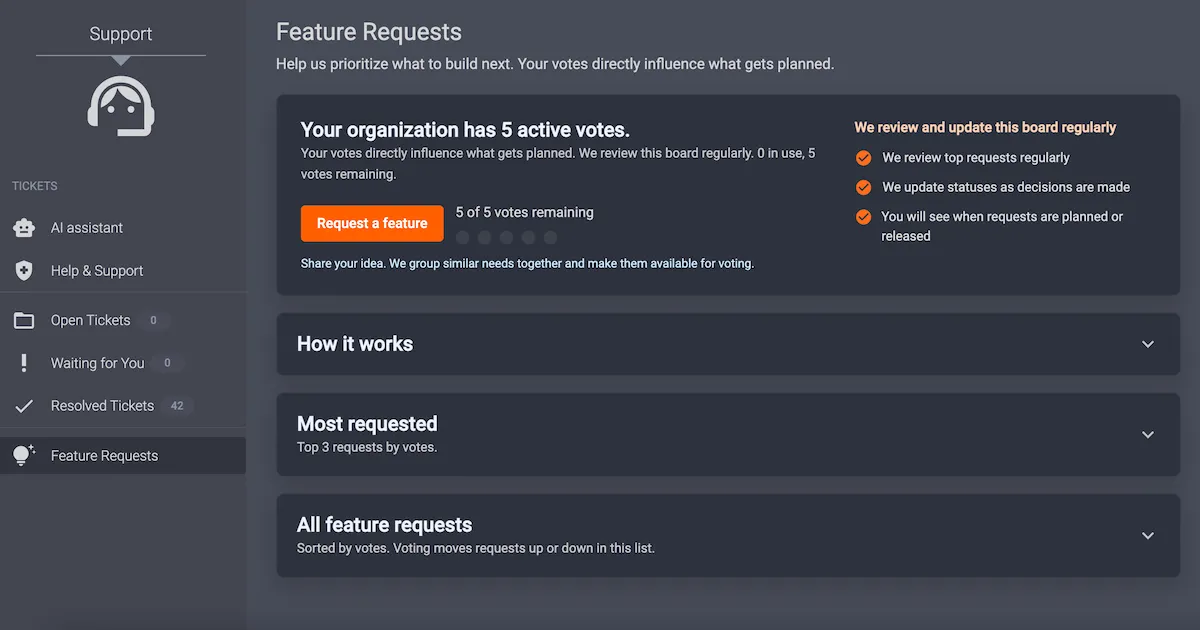
Pannello Voti Attivi
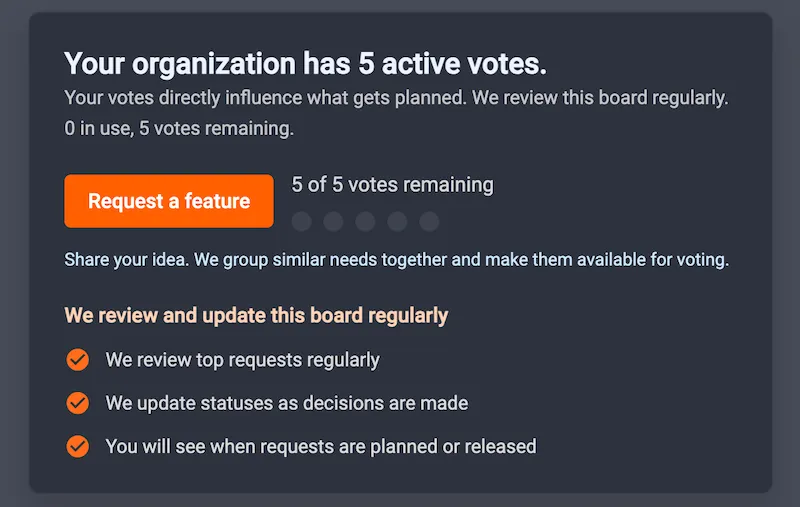
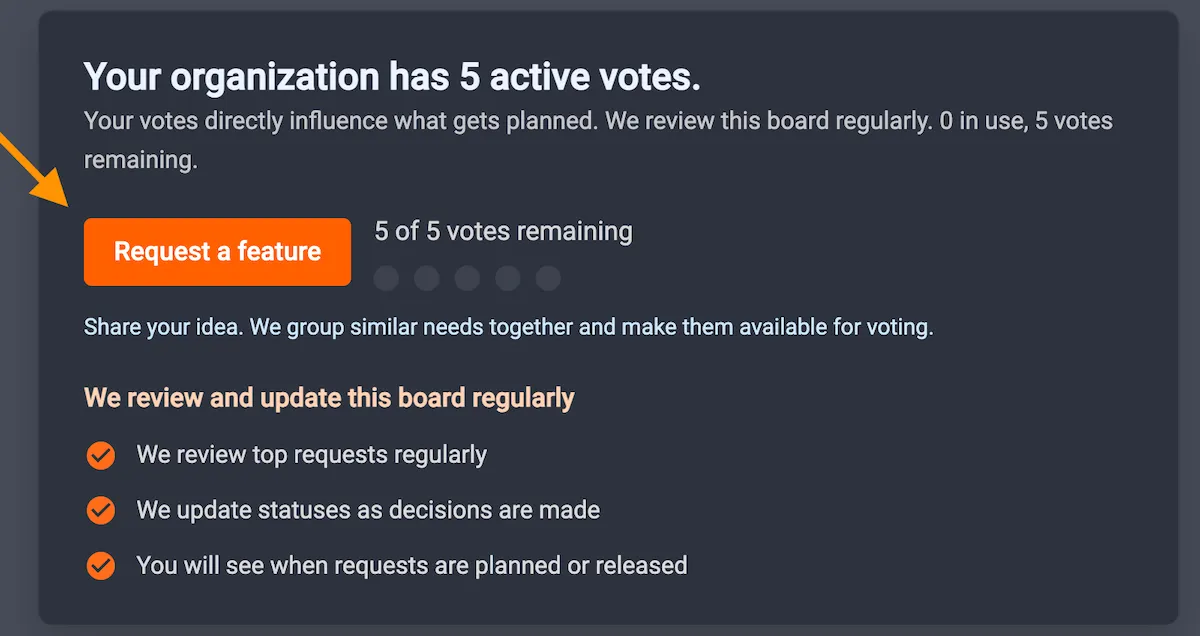
Il pannello principale della bacheca mostra i voti attivi della tua organizzazione con il totale dei voti rimanenti e ti consente di inviare una nuova richiesta di funzionalità. Questo si aggiunge alle informazioni sulla procedura di revisione e segnalazione per i ticket di richiesta. Ogni organizzazione riceve un totale di 5 voti che può utilizzare per votare sui ticket di richiesta esistenti o per inviare una nuova richiesta di funzionalità. Il numero totale di voti attivi viene visualizzato accanto al pulsante per richiedere una funzionalità.
Pannello Come Funziona
Fare clic sul pannello Come funziona per aprire una casella a discesa che descrive i quattro passaggi per richiedere funzionalità, la loro revisione e implementazione.
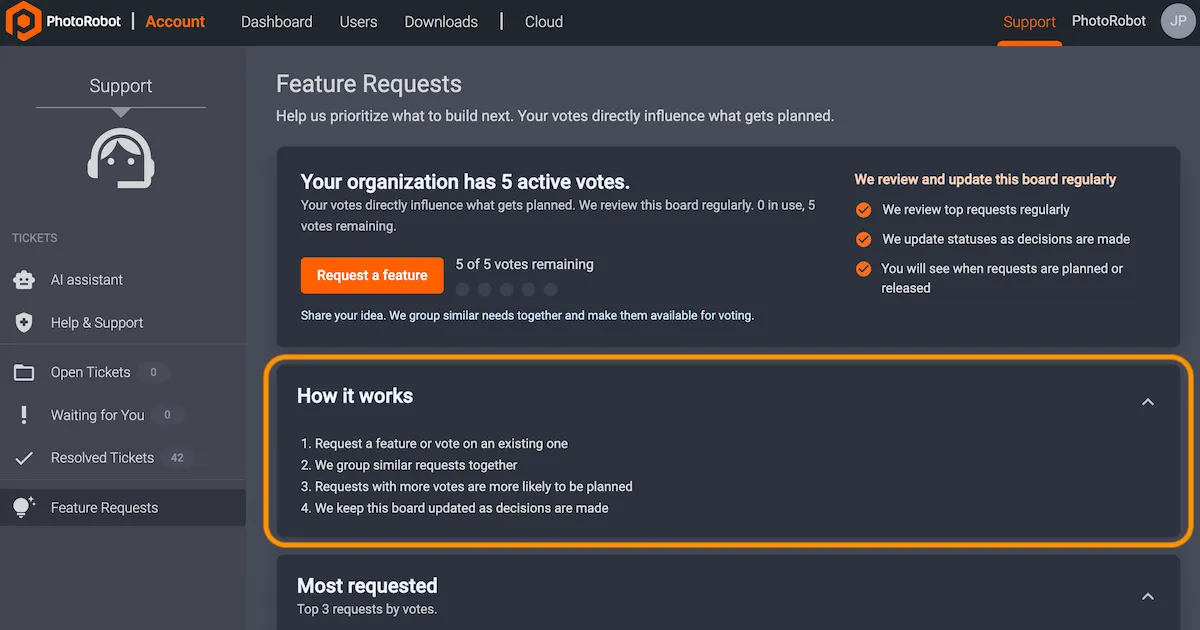
- Richiedi una funzionalità o vota su una esistente.
- PhotoRobot raggruppa richieste simili.
- Le richieste con più voti hanno maggiori probabilità di progredire nelle fasi di pianificazione.
- PhotoRobot aggiorna regolarmente questa bacheca e man mano che prendiamo decisioni.
Nota: Quando si prendono decisioni sulla pianificazione, è una promessa di processo, non una garanzia di ordine di spedizione. Le limitazioni di ingegneria, sicurezza e roadmap si applicano ancora. Ciononostante, ciò garantisce che la prioritizzazione sia trasparente, visibile ed equa.
Pannello più richiesto
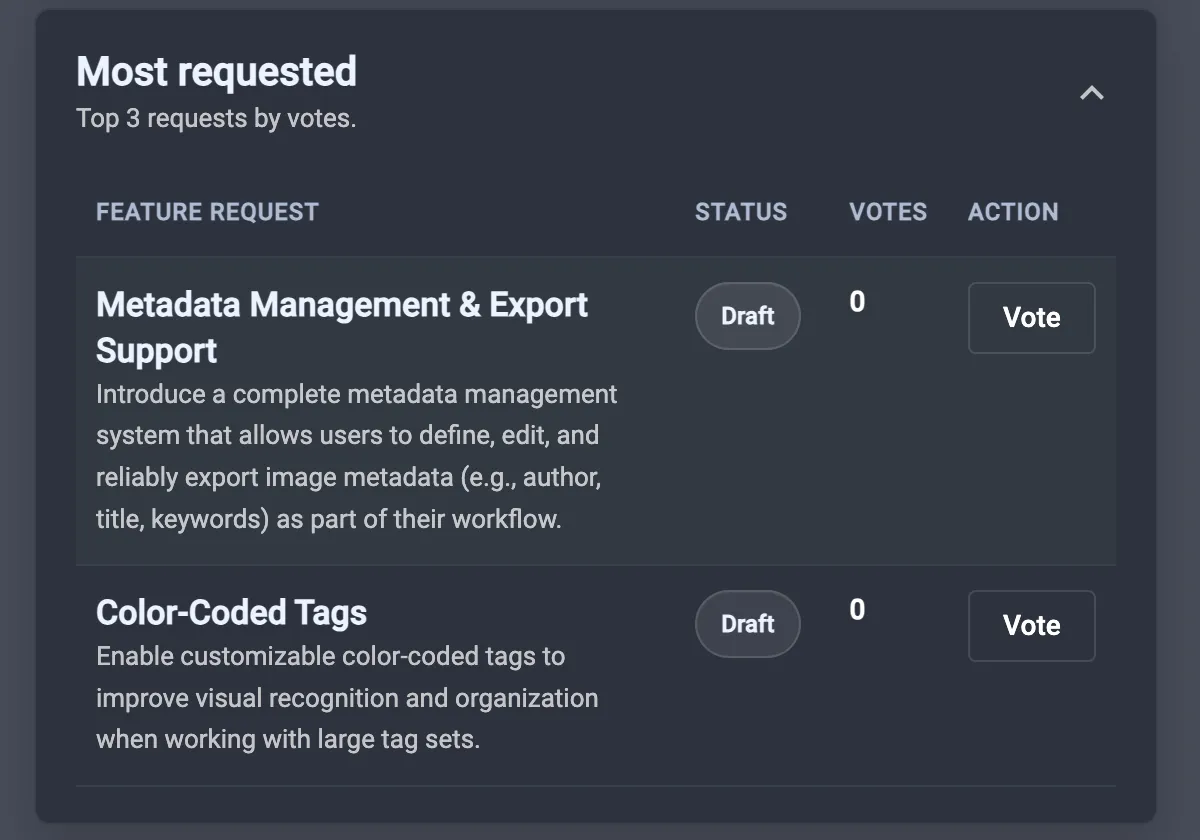
Cliccando sul pannello Più richiesti si aprirà una casella a discesa che evidenzia i ticket di richiesta che stanno guadagnando popolarità. Ciò ti consente di allineare i voti della tua organizzazione con l'interesse più ampio dei clienti, se lo desideri.
Pannello Tutte le Richieste di Funzionalità
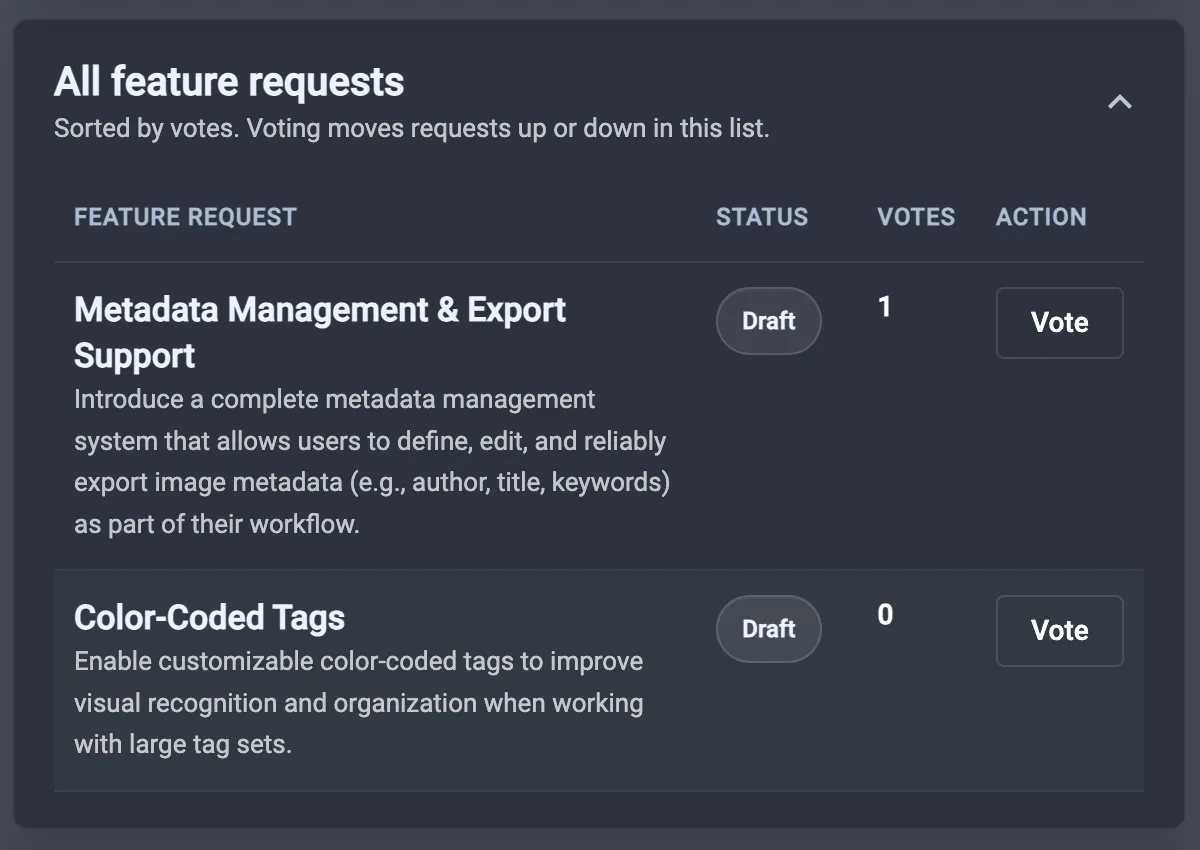
Il pannello Tutte le richieste di funzionalità visualizza gli elementi in base al numero di voti. Allo stesso tempo, il voto sposta gli elementi su o giù nell'elenco a seconda del numero totale di voti.
3 - Come votare le richieste di funzionalità esistenti
Per votare le richieste di funzionalità esistenti, trova una funzionalità specifica tramite il pannello Più richieste o il pannello Tutte le richieste di funzionalità. Ogni richiesta di funzionalità contiene quattro colonne per descrivere la funzionalità, visualizzarne lo stato, mostrare il numero di voti ed esprimere i voti.
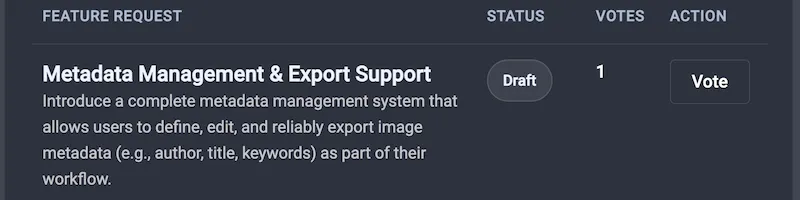
C'è il titolo della funzionalità con una breve descrizione, mentre lo stato comunica se la richiesta è in fase di revisione, pianificazione, sviluppo o già attiva. Lo stato può anche comunicare che abbiamo deciso di sospendere o non perseguire una richiesta specifica per ora.
Accanto allo stato della richiesta, c'è il numero di voti per quella richiesta e la colonna delle azioni per gli utenti per inviare un voto. Clicca su Vota per utilizzare uno dei voti disponibili della tua organizzazione, o annulla un voto cliccando nuovamente sul pulsante di voto.
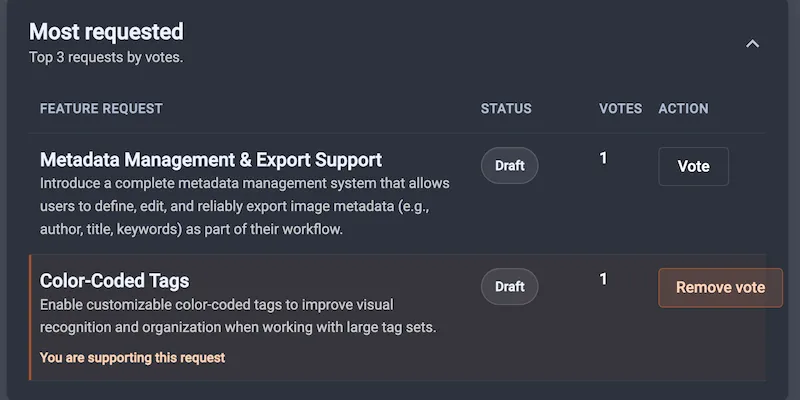
Nota: Il numero totale di voti disponibili si riferisce alla vostra organizzazione, non alla quota personale di un singolo individuo. Quando si vota per un elemento, si scambia uno dei voti disponibili della propria organizzazione finché la richiesta non raggiunge un esito chiuso. Ad esempio, gli esiti chiusi possono includere "rilasciato" o "non in programma per ora". A questo punto, le regole di voto potrebbero non essere più applicabili a quella specifica voce.
4 - Come inviare nuove richieste di funzionalità
Nel menu principale in alto, clicca su Invia una funzionalità per aprire la finestra di dialogo per inviare nuove richieste di funzionalità.
La finestra di dialogo richiede agli utenti di inserire un Oggetto (titolo) chiaro della richiesta di funzionalità e la Descrizione del problema che si sta cercando di risolvere. È quindi possibile allegare file prima di creare la richiesta di funzionalità.

Dopo aver compilato i campi richiesti, clicca su Crea richiesta di funzionalità per inviare il tuo ticket alla bacheca.
Le richieste diventano quindi un ticket di supporto con un'etichetta che lo identifica come richiesta di funzionalità. Ciò consente al team PhotoRobot di iniziare a esaminare i dettagli della richiesta prima di ricontattarti direttamente.
Poi, spesso uniamo le esigenze in un elemento della bacheca che diventa visibile agli altri nell'ecosistema clienti PhotoRobot. Il ticket rimane anche nel thread per notificare facilmente gli utenti quando la loro richiesta diventa visibile sulla bacheca e quando possono votare l'elemento.
Nota: Se si parte da una richiesta di funzionalità esistente, il ticket si collegherà automaticamente a quella specifica richiesta per collegare i due nel contesto.
5 - Come seguire i ticket delle richieste di funzionalità
Per seguire l'avanzamento di un ticket di richiesta funzionalità, ci sarà una scheda per la richiesta nella barra laterale del ticket di supporto.
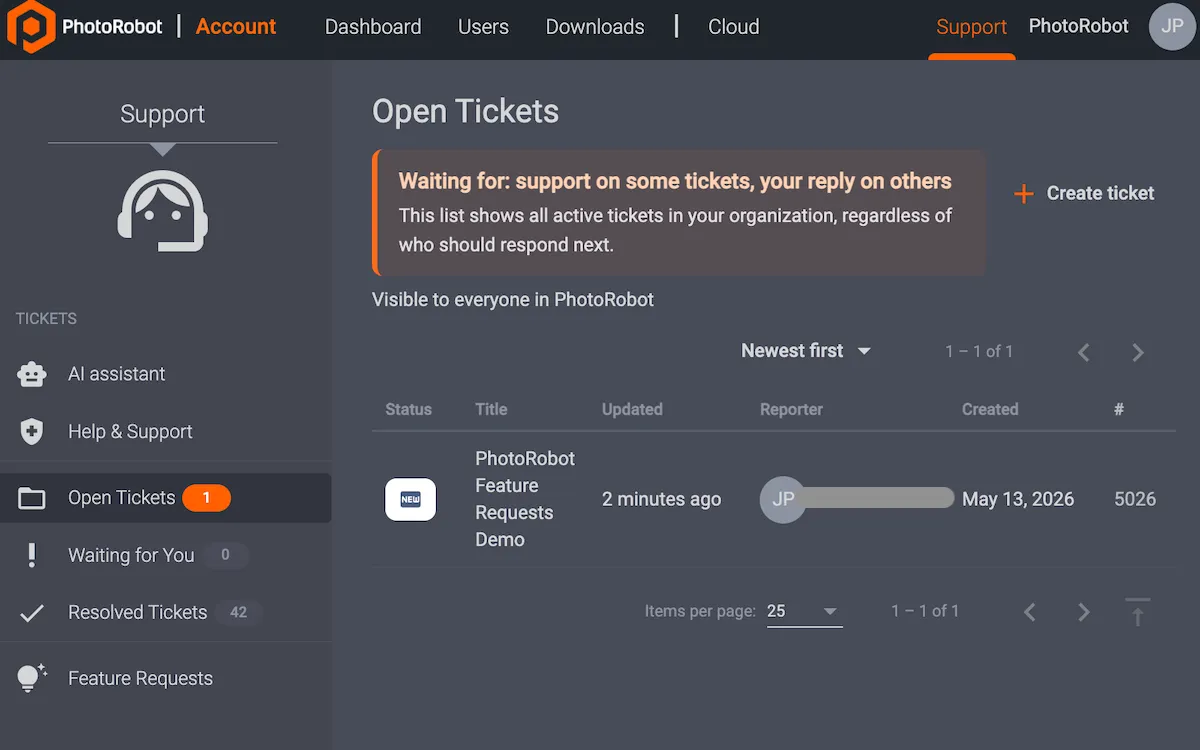
La scheda mostra il titolo pubblico della richiesta, il suo riepilogo e il suo stato, insieme a un modo per aprire la voce della bacheca in un nuovo contesto. Questo aiuta a garantire un orientamento chiaro, senza dover cercare la voce corretta.
6 - Come PhotoRobot implementa le richieste di nuove funzionalità
Ogni richiesta ha un'influenza diretta su ciò che priorizziamo e pianifichiamo successivamente. Tuttavia, si noti che gli elementi sulla bacheca non rappresentano un impegno. Inoltre, gestiamo intenzionalmente i ticket delle funzionalità in modo diverso dai ticket di supporto urgenti.
Ciò significa che i ticket delle funzionalità potrebbero rimanere aperti più a lungo mentre valutiamo e pianifichiamo il lavoro. Inoltre, tieni presente che la bacheca delle richieste di funzionalità è non sostituisce il supporto urgente. Se la produzione è interrotta o stai riscontrando un blocco, apri sempre un normale ticket di supporto. PhotoRobot risponderà quindi tramite i nostri consueti flussi di lavoro di supporto.
Alla fine, la bacheca delle richieste di funzionalità esiste affinché il tuo feedback si aggreghi in qualcosa di misurabile e affinché possiamo comunicare meglio. Usa il tuo voto per allinearti con le priorità della tua organizzazione, invia idee quando la bacheca non copre ancora il tuo caso e osserva gli stati man mano che la roadmap si evolve.
Il team PhotoRobot aggiorna regolarmente la bacheca man mano che le decisioni vengono prese, mentre la tua partecipazione aiuta a modellare il prodotto per l'intero ecosistema.
Materiali e informazioni di supporto
Per maggiori informazioni sulla bacheca delle richieste di funzionalità, consulta Aiutare a plasmare i controlli PhotoRobot. Per ulteriore supporto sull'utilizzo dell'app PhotoRobot Controlli, fai riferimento a PhotoRobot Guida introduttiva per una panoramica completa del software e del suo utilizzo.


Serie EOS Rebel


Serie EOS DSLR


Serie mirrorless EOS M


Serie PowerShot


Primo piano / Palmare

La serie Canon EOS Rebel offre fotocamere reflex digitali adatte ai principianti con una solida qualità dell'immagine, controlli intuitivi e funzioni versatili. Ideali per gli appassionati di fotografia, queste fotocamere offrono una messa a fuoco automatica affidabile, touchscreen orientabili e registrazione video Full HD o 4K.
Connessione
Risoluzione (MP)
Risoluzione
La serie di reflex digitali Canon EOS offre immagini di alta qualità, messa a fuoco automatica veloce e versatilità, che la rendono ideale sia per la fotografia che per la produzione video.
Connessione
Risoluzione (MP)
Risoluzione
La serie mirrorless Canon EOS M combina un design compatto con prestazioni simili a quelle di una reflex digitale. Dotate di obiettivi intercambiabili, messa a fuoco automatica veloce e sensori di immagine di alta qualità, queste fotocamere sono ideali per i viaggiatori e i creatori di contenuti che cercano la portabilità senza sacrificare la qualità dell'immagine.
Connessione
Risoluzione (MP)
Risoluzione
La serie Canon PowerShot offre fotocamere compatte e facili da usare per i fotografi occasionali e gli appassionati. Con modelli che vanno dalle semplici compatte alle fotocamere con zoom avanzate, offrono praticità, qualità dell'immagine solida e funzionalità come la stabilizzazione dell'immagine e i video 4K.
Connessione
Risoluzione (MP)
Risoluzione
Le fotocamere portatili e ravvicinate Canon sono progettate per fotografie e video dettagliati e ravvicinati. Compatti e facili da usare, offrono una messa a fuoco precisa, immagini ad alta risoluzione e funzionalità macro versatili, perfette per vlogging, fotografia di prodotti e primi piani creativi.


